
Key features
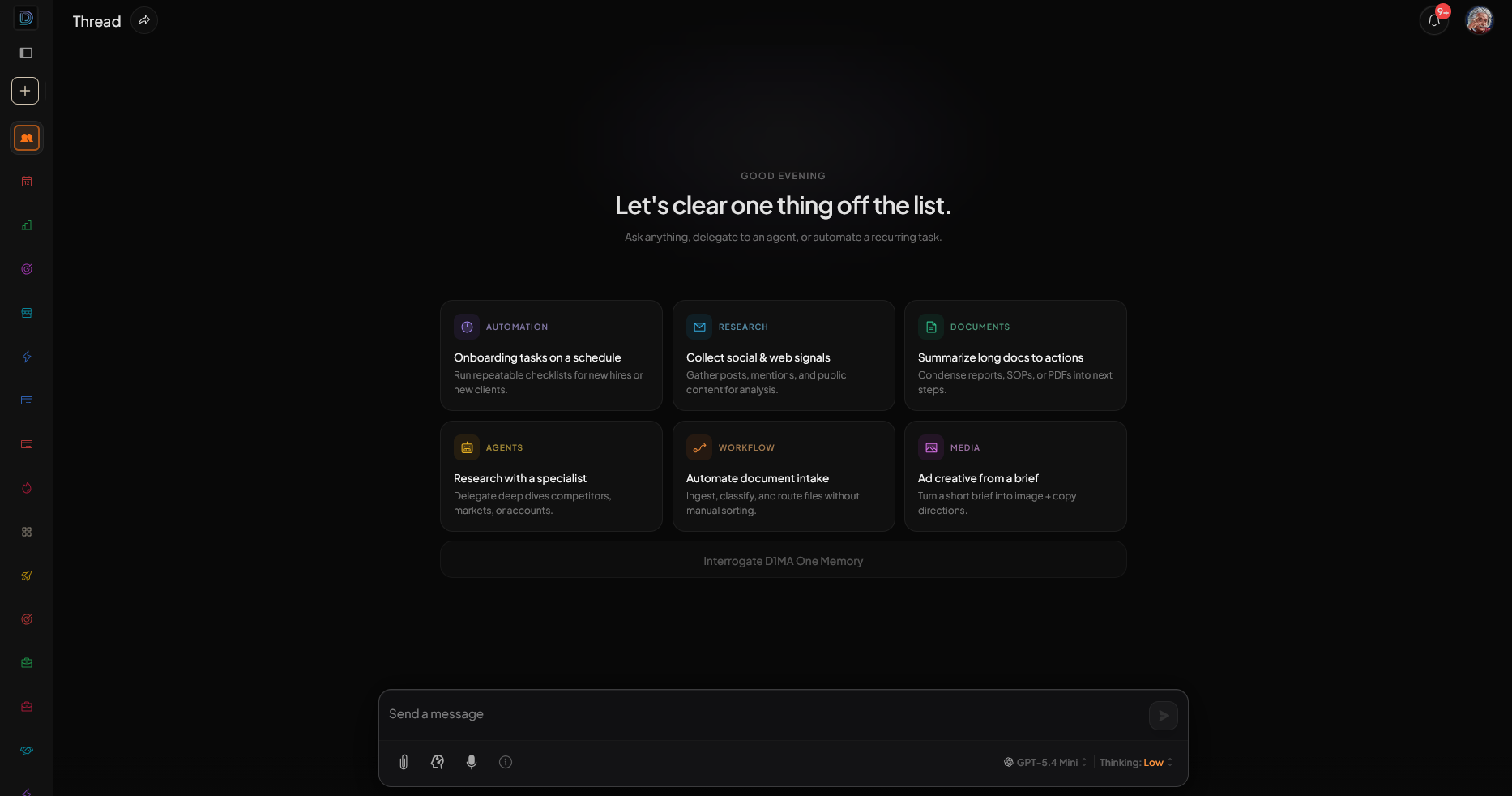
- Thread-based conversations — Each thread has its own history and context. Threads are private to each user.
- Recommended prompts — Workspace-created suggestions or AI-generated recommendations to help user get started.
- Top bar — Thread name, Share thread icon-button, notifications, user menu.
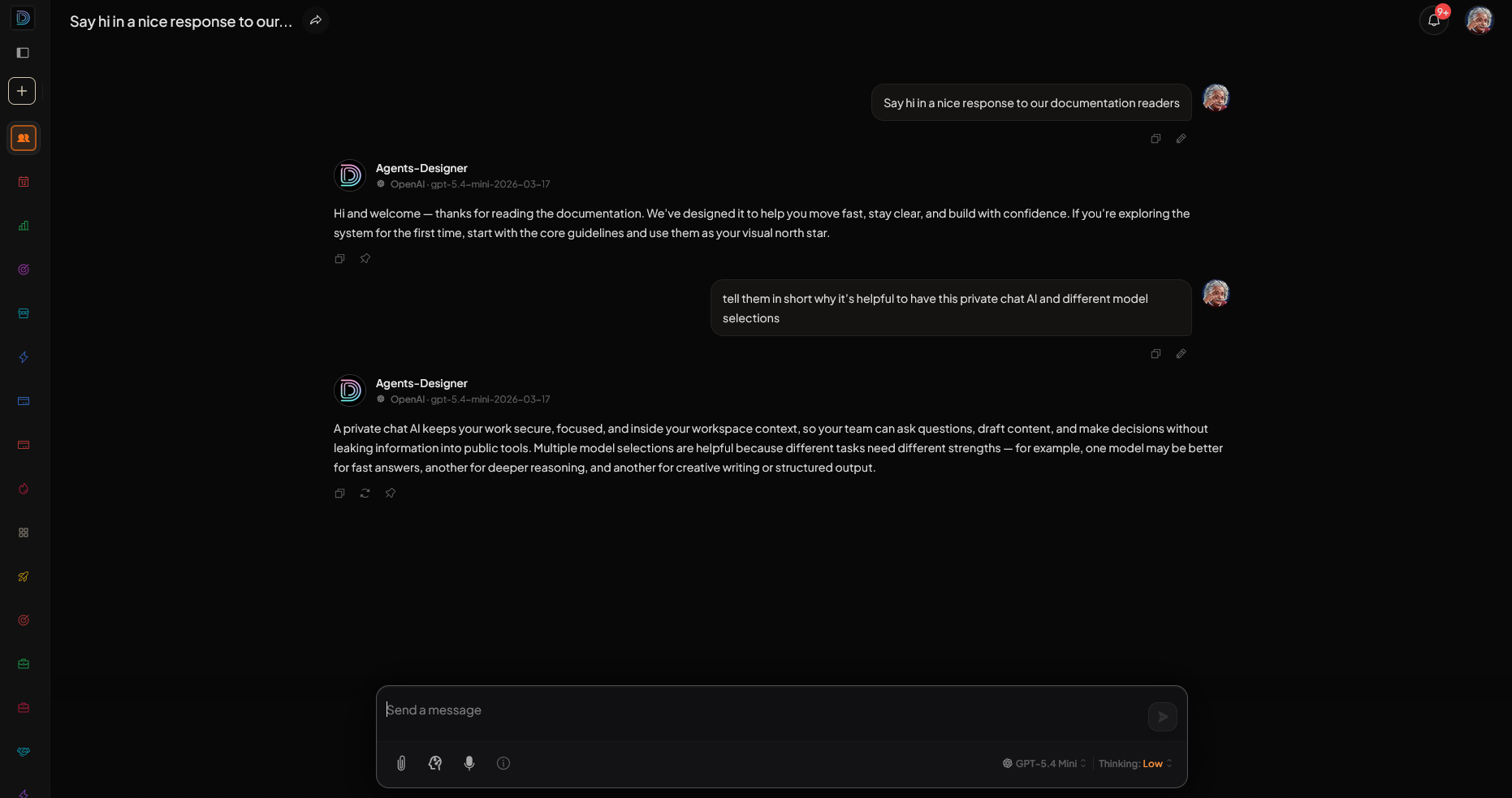
- Chat history — Scrollable message list with user and assistant messages
- Input field — Type messages, attach files, select agents, select preffered model,thinking level.
- Drag and drop — Drop files onto the chat area to attach them.
Creating a new thread
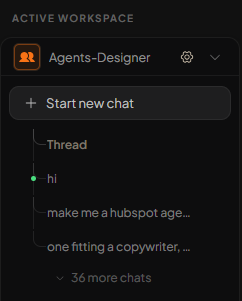
From the sidebar
- Expand a workspace (or hover when collapsed to open the floating menu).
- Click Start new chat at the top of the workspace’s thread list.
- You’re taken to a new, empty thread in that workspace.
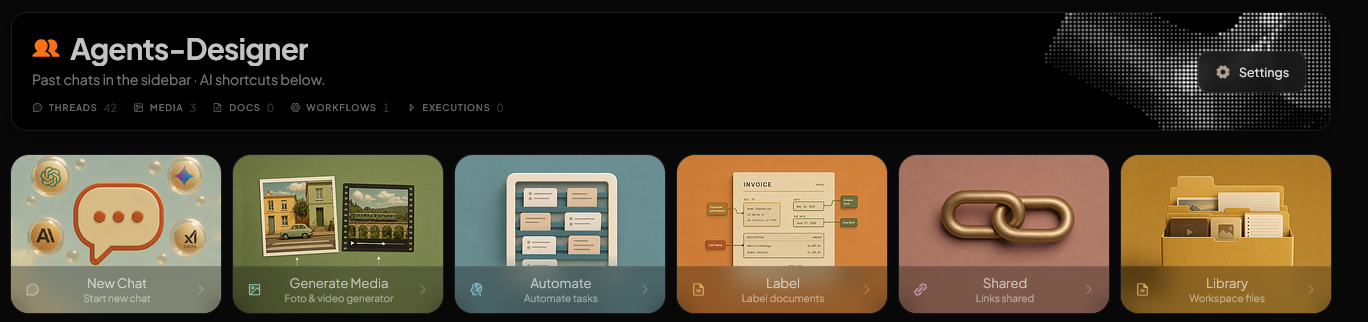
From the dashboard
- Open the workspace dashboard.
- Click New Chat in the quick action bar.
- A new thread is created and opened in the chat view.
What happens
- A new thread is created with an initial name (e.g. “Chat Thread”).
- The thread appears in the sidebar under that workspace.
- You land on the empty thread view with the welcome layout and recommended prompts.
- You can rename the thread later from the top bar.
Recommended prompt blocks
When a thread is empty, you see a welcome area with prompt suggestions. There are two types:
Workspace-created suggestions
- Source: Defined by workspace admins in Workspace Settings → General Appearance → Suggested Messages
- Format: Cards with a heading and message text
- When shown: If the workspace has suggested messages configured (up to 12)
- Behavior: Click a card to send that message as your first prompt
These are fixed prompts chosen for the workspace (e.g. “Summarize the meeting notes”, “Explain this document”).
AI-generated recommendations
- Source: Generated by the system from workspace activity (threads, documents, topics)
- Format: Cards with a title and prompt; labeled “AI generated”
- When shown: If the workspace has no suggested messages, or as a fallback
- Behavior: Click a card to send that prompt and start the conversation
Recommendations update based on how the workspace is used. Use the refresh control (when available) to fetch new suggestions.
Troubleshooting
- Recommended prompts not showing — Ensure the workspace has suggested messages, or that AI recommendations can load (check workspace activity and refresh).
- Can’t create thread — Confirm you have access to the workspace. Try from the dashboard or sidebar.
- Thread name not updating — Click the pencil icon in the top bar, edit, and blur or press Enter to save.
- Messages not sending — Verify the input isn’t disabled (e.g. during generation). Check for credit or connectivity issues.
Related topics
For more information, see:
- Chat Input Field Guide — Input options, attachments, agents, slash commands
- Chat Top Bar Guide — Thread actions, notifications, user menu
- Sidebar Guide — Create threads and switch between them
- Workspace Dashboard Guide — New Chat quick action