
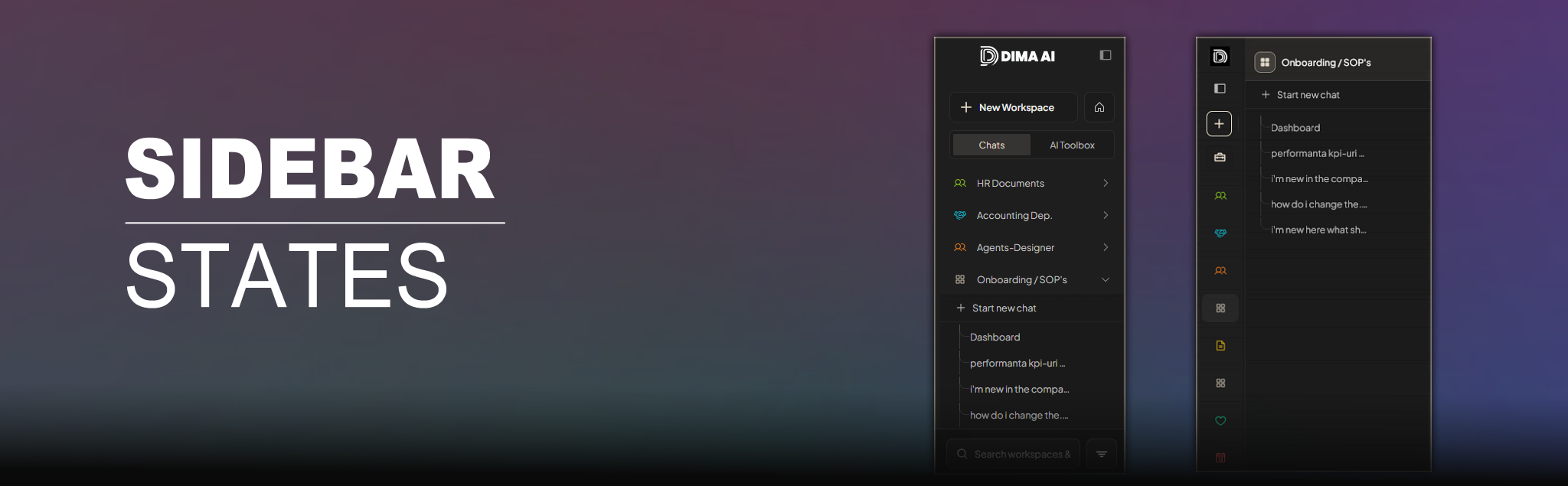
Key features:
- Workspaces and threads — Each workspace contains its chat threads; expand a workspace to see and switch between them
- Star favorites — Star workspaces to keep them at the top
- Search — Search by workspace name or thread titlel./
- Sort filters — Order by date (recent activity) or interactions (most used)
- Expand/collapse — Toggle between full (256px) and compact (68px) views; collapsed mode uses a floating menu on hover
- Chats vs AI Toolbox — Switch between chat threads and workspace tools (Saved Items, Digital Agents, Media Generation, etc.)
Workspaces and threads
What is a workspace?
A workspace is a container for:
- Documents — Files you upload for the AI to use
- Chat threads — Separate conversations within that workspace
- Tools — Saved Items, Digital Agents, Media Generation, and more
Each workspace is independent. Documents and threads in one workspace are not shared with others.
What are threads?
Threads are individual chat conversations within a workspace. One workspace can have many threads. Each thread has its own history and context.
How they appear in the sidebar
- Workspace row — Each workspace appears as a row with its name (or icon when collapsed).
- Expand — Click the workspace or the expand arrow (▸) to show its contents.
- Thread list — When expanded in Chats mode, you see:
Star (favorites)


What it does
Starring a workspace pins it to the top of the list. Your favorites stay above others, regardless of sort filters.
How to use
- Hover over a workspace row (expanded sidebar).
- Click the star icon on the right.
- The star turns yellow when favorited.
- Click again to unfavorite.
On mobile:
- The star is always visible for favorited workspaces.
Persistence:
- Favorites are saved per user and persist across sessions.
Search

Where to find it
- Desktop (expanded): Search bar at the bottom of the sidebar
- Mobile: In the footer area of the sliding sidebar panel
- Placeholder: "Search workspaces & chats"
What you can search
| Type | Behavior |
| Workspace name | Matches workspace names |
| Thread title | Matches chat thread titles (after 2+ characters) |
NOTE: Search filters the list in real time. Only workspaces (and their threads) that match appear. Clear the search with the X button to show everything again.
How it works
- Type at least 2 characters to search thread titles; shorter queries only match workspace names.
- Thread search loads thread data as you type (workspaces are indexed on demand).
- Search applies in Chats mode only; in AI Toolbox mode, search is disabled.
Sort filters
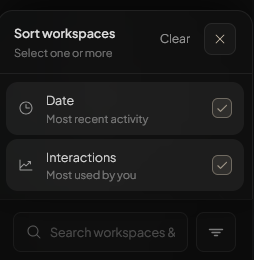
Opening the filter menu
Click the filter (funnel) icon next to the search bar. A panel opens with sort options.
Available filters
| Filter | Description |
| Date | Most recent activity first |
| Interactions | Most used by you first |
NOTE: You can enable one or both. When both are on, the order is: Interactions first, then Date. Favorites stay at the top in all cases.
Using filters
- Click the filter icon.
- Turn filters on or off by clicking each option (checkmark = active).
- Use Clear to remove all filters.
- Close the panel when done (X or by clicking outside).
Persistence:
- Your filter choices are saved per user.
Expand and collapsed states
Expanded (default)
- Width: 256px
- Shows: Full workspace names, thread lists, tool menus, star, expand arrows
- Use when: You need to browse threads and tools
Collapsed
- Width: 68px
- Shows: Icons only (logo/favicon, Home, New Workspace, workspace icons)
- Floating menu: Hover over a workspace icon to open a pop-out panel with threads/tools
- Use when: You want more space for the main content
Toggling

- Click the sidebar icon (double-line) next to the logo.
- Your choice is saved and restored on the next visit.
Collapsed state behavior
- Hover on a workspace icon → floating menu opens to the right.
- Move mouse into the floating menu → it stays open.
- Leave the menu and workspace area → menu closes.
- Click a workspace icon → Navigate to that workspace (and close the menu on mobile).
Action buttons

New Workspace
- Who sees it: Admins and managers
- Action: Opens the workspace creation modal
- Collapsed: Shown as a plus icon with tooltip
Home
- Action: Navigate to the home page
- Visible to: All users
- Collapsed: House icon with tooltip
Troubleshooting
- Search returns no results — Ensure you typed at least 2 characters for thread search. Check that workspace names or thread titles match your query.
- Floating menu closes too soon — Move the cursor slowly from the sidebar to the menu. Moving toward the top bar can close it.
- Star not visible — Hover over the workspace row; the star appears on the right. On mobile, it’s only visible when the workspace is favorited.
- Sidebar state resets — Collapse/expand preference is stored in localStorage. Clearing site data will reset it.
- Filter options not sticking — Filters are saved per user. If they don’t persist, check that you’re logged in.