
Introduction
A practical guide to using the GPT Image 1.5 model in our Media Generator: options, costs, prompt tips, and best practices.
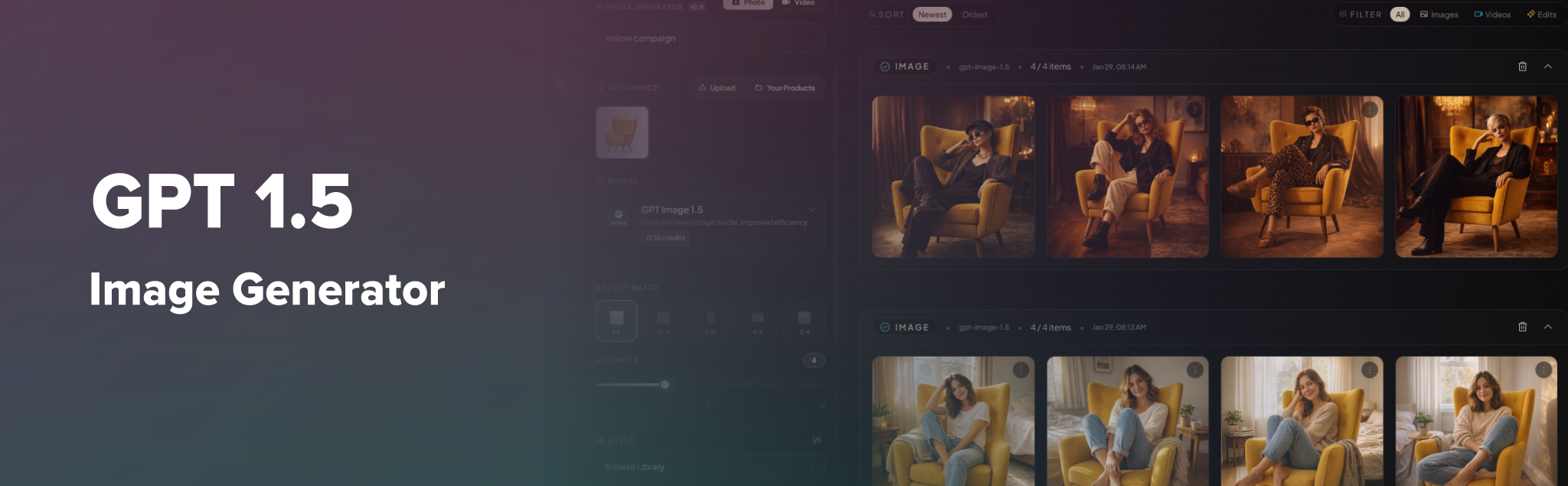
GPT Image 1.5 is OpenAI's latest image generation model, tuned for better efficiency and quality. In our platform, it powers:
- Photo generation — Images from text prompts
- Image projects — Batch jobs with multiple prompts
- Chat agents — In-chat image generation (when configured)
- Reference-based generation — Using product or style images as input
Use it for general-purpose image creation when you want strong quality and consistency with our simplest workflow.
Where to Use GPT Image 1.5
| Location | How | |----------|-----| | Media Generator | Tools → Media Generator → Create Job → choose "GPT Image 1.5" in the model dropdown | | Image projects | Create a project, add prompts, and select GPT Image 1.5 as the model | | Chat | Use an agent that includes image generation and has GPT Image 1.5 selected as the image model | | LLM preferences | General Settings → LLM Preference → set GPT Image 1.5 as the default image model |
Platform Options
Aspect ratio
| Option | Label | Output size | Best for | |--------|-------|-------------|----------| | 1:1 | Square | 1024×1024 | Icons, thumbnails, social grid | | 16:9 | Landscape | 1536×1024 | Banners, headers, wide layouts | | 9:16 | Portrait | 1024×1536 | Stories, mobile-first content | | 4:3 | Standard | 1024×1024 | Classic photo crop | | 3:4 | Photo | 1024×1536 | Portrait photos, cards |
Default:
- 1:1 (square)
Output format
- PNG — Lossless, good for graphics and transparency needs
Batch size (images per request)
- 1–12 images per generation
- Generating multiple images at once is more efficient than separate requests
Quality
- Auto — Platform default, balances quality and speed
- Quality can be adjusted via API parameters when supported
Reference images
- Optional — No reference required for pure text-to-image
- Up to 4 reference images when editing or style-transferring
- Accepted formats: PNG, JPG, WEBP
- Max file size: 10 MB per file
- Max files: 10 uploads per request
Reference images are useful for:
- Product photos with consistent styling
- Keeping a character or object consistent
- Style transfer from example images
Costs (credits)
GPT Image 1.5 uses flat per-image pricing in platform credits:
- Cost is per generated image
- Exact credit amount is shown in the model selector in the Media Generator
- Batch jobs: cost = number of images × per-image cost
- Costs may be adjusted; always refer to the UI for current rates
Prompt guidelines
Do
- Be specific: subject, style, composition, lighting, mood
- Use clear, natural language; the model understands longer prompts
- Mention composition: “centered,” “wide angle,” “close-up”
- Specify style: “photorealistic,” “watercolor,” “minimalist”
- Include lighting: “soft daylight,” “studio lighting,” “golden hour”
- Add context: setting, background, atmosphere
Example
> A professional product photo of a ceramic coffee mug on a light wooden table, soft window light from the left, white background, minimalist style, commercial quality
Avoid
- Overly vague descriptions (“nice image,” “pretty picture”)
- Conflicting instructions in the same prompt
- Extremely long prompts; clarity usually beats length
- Prompts that violate content or safety rules
Good practices
1. Start simple, then refine
Begin with a short prompt. If the result is off, add detail for:
- Subject
- Style
- Lighting
- Composition
- Mood
2. Use reference images for consistency
- Upload 1–4 reference images when you need:
- Consistent product look - Specific style - Same character or object across images
- Keep references clear and well-lit
3. Choose the right aspect ratio
- 16:9 — Banners, headers, desktop layouts
- 9:16 — Stories, mobile, vertical feeds
- 1:1 — Thumbnails, grids, square social posts
4. Batch when possible
- Use batch projects or multiple images per request
- More efficient than many single-image runs
5. Prompt enhancement (projects)
- If enabled, the platform can enhance prompts before generation
- Useful when you have rough ideas; review and tweak before running
Limits and constraints
| Constraint | Value | |------------|-------| | Max prompt length | 32,000 characters | | Reference images | Up to 4 per generation | | Rate limit | 10 requests per minute | | Max images per request | 4 (batch) |
Troubleshooting
| Issue | What to try | |-------|-------------| | Wrong style or composition | Add explicit style and composition terms | | Inconsistent results | Use reference images or more specific prompts | | Rate limit errors | Space out requests; avoid burst usage | | Credits exhausted | Check balance; add or upgrade plan as needed | | Model not available | Confirm OpenAI API key is configured and GPT Image 1.5 is enabled |